Installation Process
After the ticket has been created to the location the Installer is able to take the reader into use.
When the reader hardware is dispatched from the manufacturer the devices have factory settings. In the installation the reader device will receive customer specific settings and then other parties are not able to use the device. Notice also that some devices require that either Bluetooth is turned on or Bitwards mobile id need to be activated.
Installation ticket visibility
The installation ticket is visible for Admins (Android only) and Installers who are member of the same account where the installation ticket is done. There is also possibility to forward the ticket for the external Installers. The Installers are preset and the installers are attached to that group.
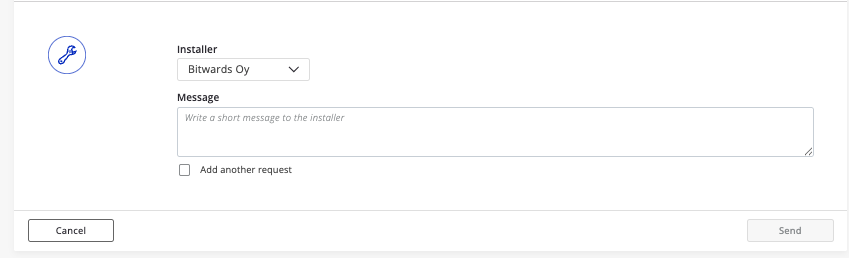
Below in the picture shows an installation ticket which has Installer party selected (in this case Bitwards).
Installation with the Application
- Installer or Admin need to login to the application. You should first receive an invitation to use the service. The invitation contains also link to download the application.
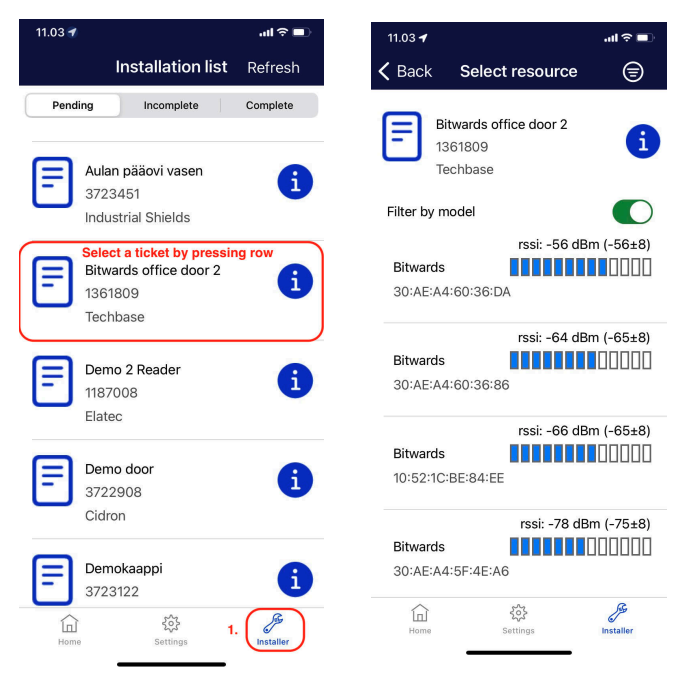
- Press in the Application Installer tab on bottom menu. On Android it is avaiable in the Application menu.
- Installation list list all the installation tickets
- Selecting one ticket starts the installation process
- The application lists all the readers (resources) that are in vicinity
- Moving the application near the reader will decrease the -dBm number and the horizontal bar will be longer.
- The nearest device is shown in the top of the list.
- Select a reader by pressing the item in the list
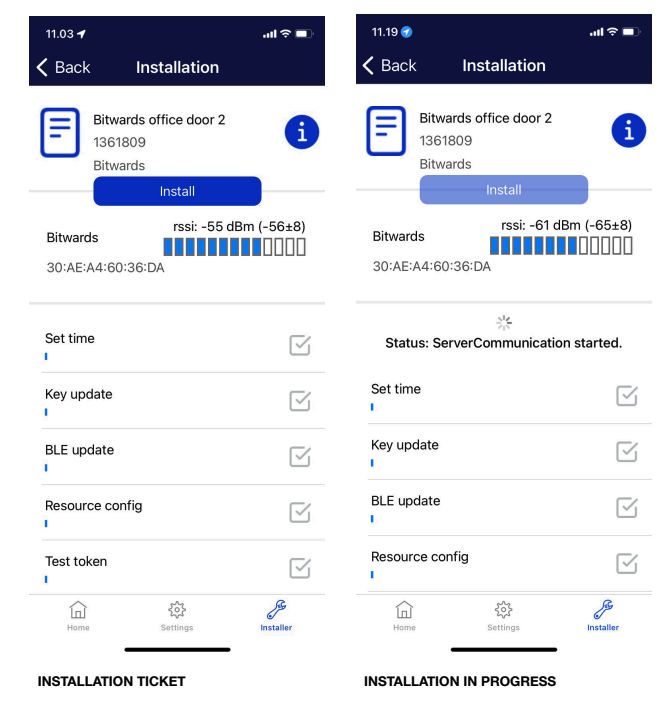
- When the reader is selected the actual installation can be started. Start the installation by pressing Install -button.
- As part of the installation several configurations are delivered to the reader.
- The final operation is sending the test token. Notice that the test token is generic so it is not real mobile id. You are able to repeat the opening with the test token.
- If everything was sent correctly installation tickcet is marked automaticly done.
- Notice that when the installation is done, the reader can be re-installed only if it is set back to the manufactory settings.
- After the reader installation is done it will become automatically available for all of the users who has Universal mobile id available (the default mode).
Troubleshooting
Reader is already installed
- If reader is already installed and you need to reinstall it consult the reader specific instructions how to do the resetting.
Reader is not visible in the installation program
- Check that the reader does have adequate power.
- Veify that the BLE is on in the device and Bitwards mobile id is enabled. Consult the manufacturer information.