User Import
CSV import can be used to import many users manually with a csv file. Create first CSV file containing the user name, email and the mobile id information. Then use the CSV Import section to start the process.
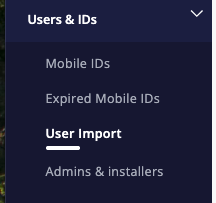
The CSV import has four steps.
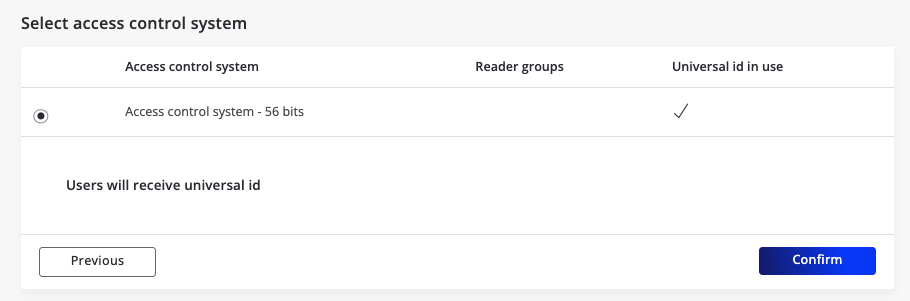
- Select the access control system
- Select mobile id type
- Choose the file to import
- Preview data and confirm and start the import

Select Access Control System
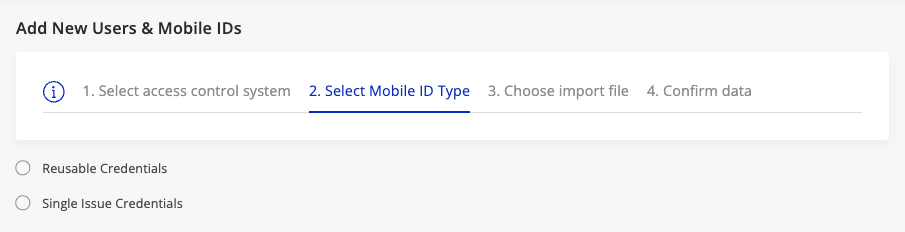
Choose the Mobile ID Type
The options are between Reusable Credentials and Single Issue Credentials.
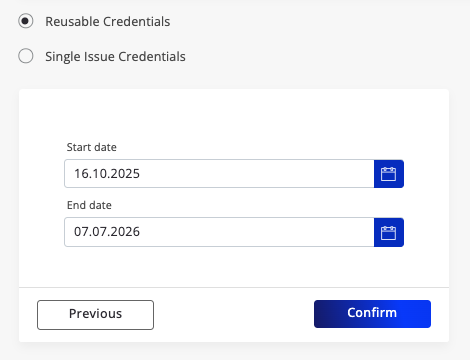
You have to give the date when the credential becomes valid. For the reusable credential you have to have also the end date.
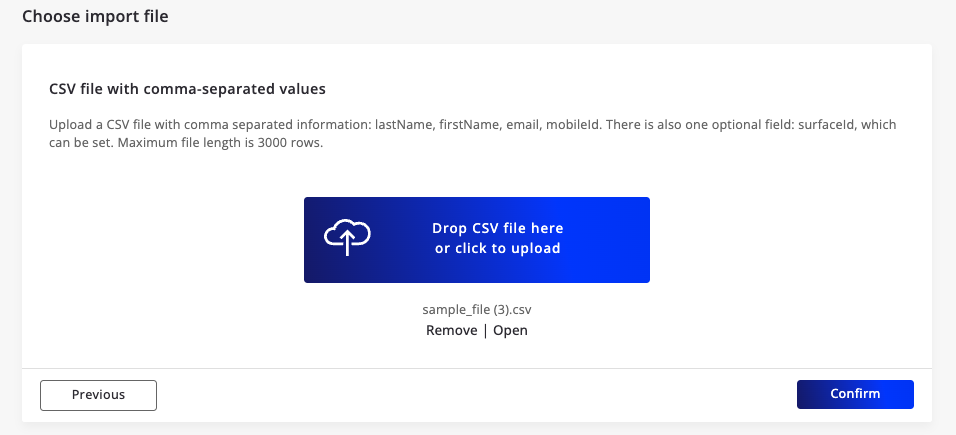
Choose the File to Import
Give the path to the CSV file in your computer and press Open or you can drag and drop the file to the blue box
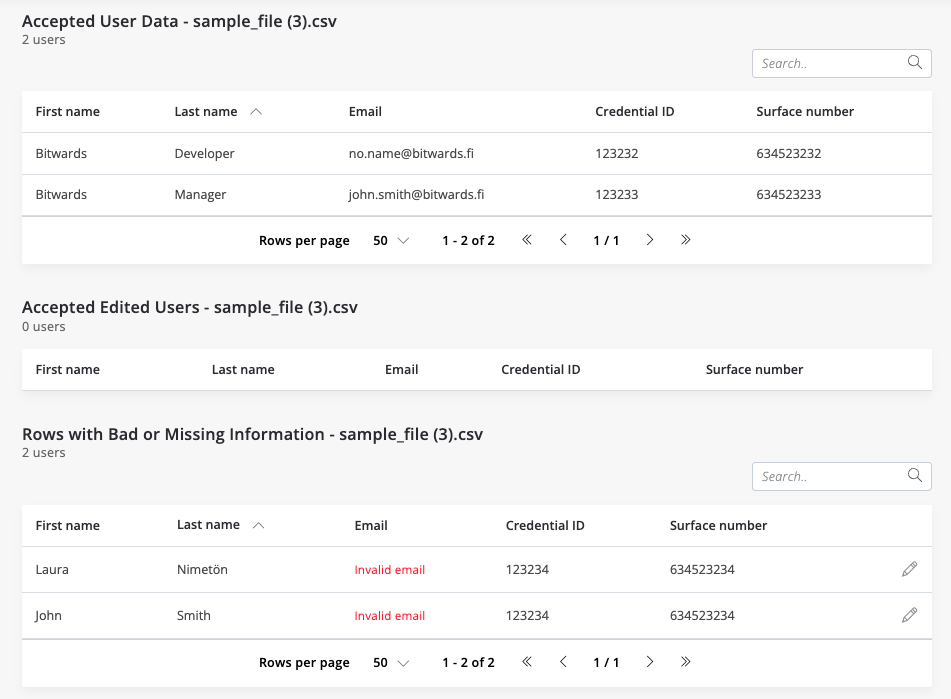
Preview the file and corrections
The CSV file is shown in three sections.
- The rows that contain acceptable data
- The rows that had incorrect data and have been already edited
- The rows that contain bad data or the required data is missing
Data corrections
-
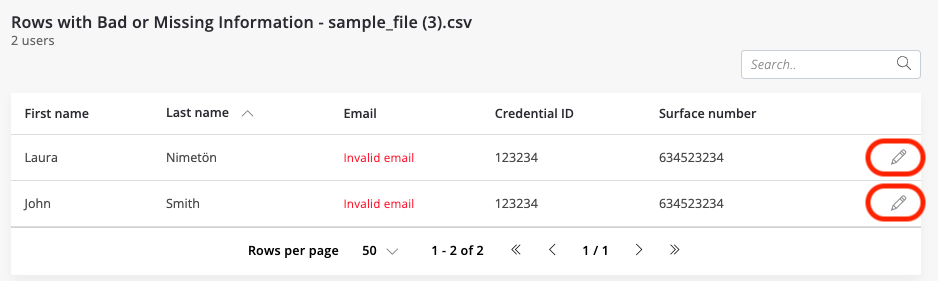
Edit a row by pressing the pencil
-
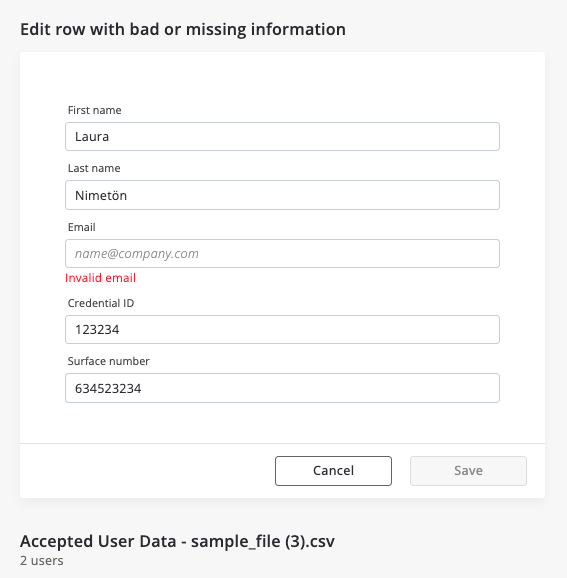
The row under edit is displayed the editing view
-
Edit the data to get it to pass the validation. In this case email was missing.
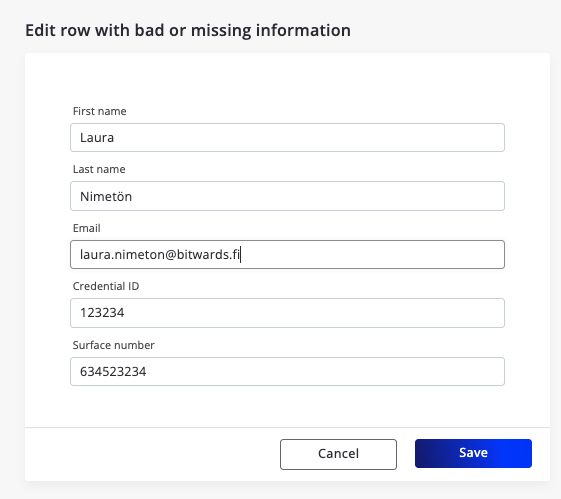
-
Press Save to finish editing
-
You will see the edited row as accepted row
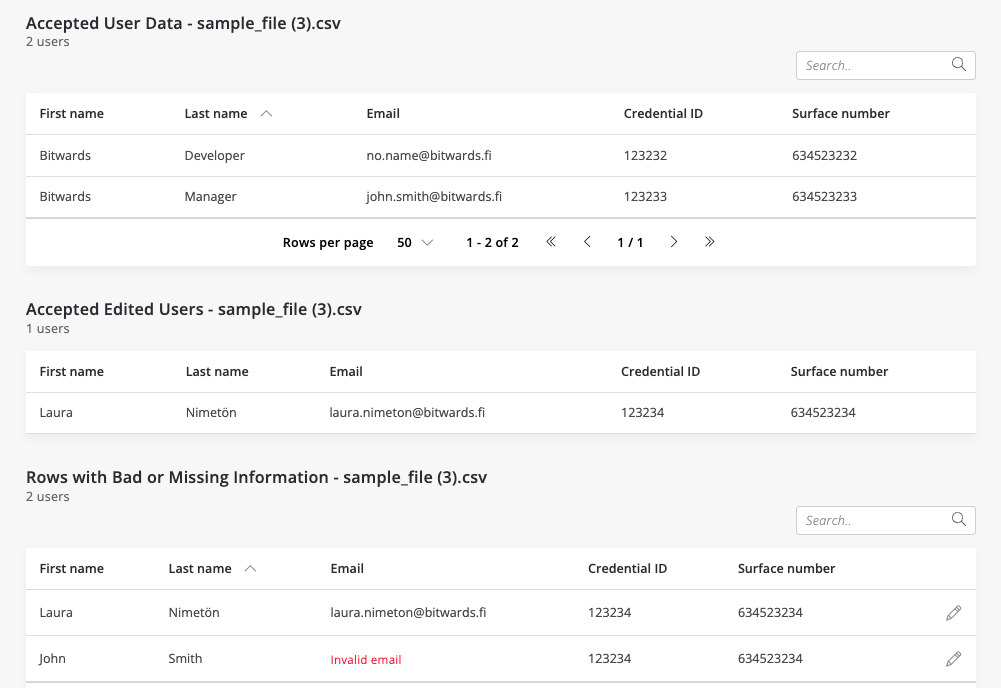
-
Edit all rows and press submit to start the import.
-
Notice that it is also possible to by pass the editing just by pressing the Submit -button.
CSV Import Report
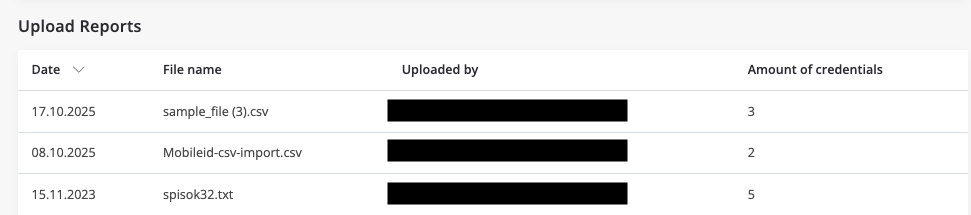
- After the upload the report section contain new report for the upload. By pressing the row you can open the report.
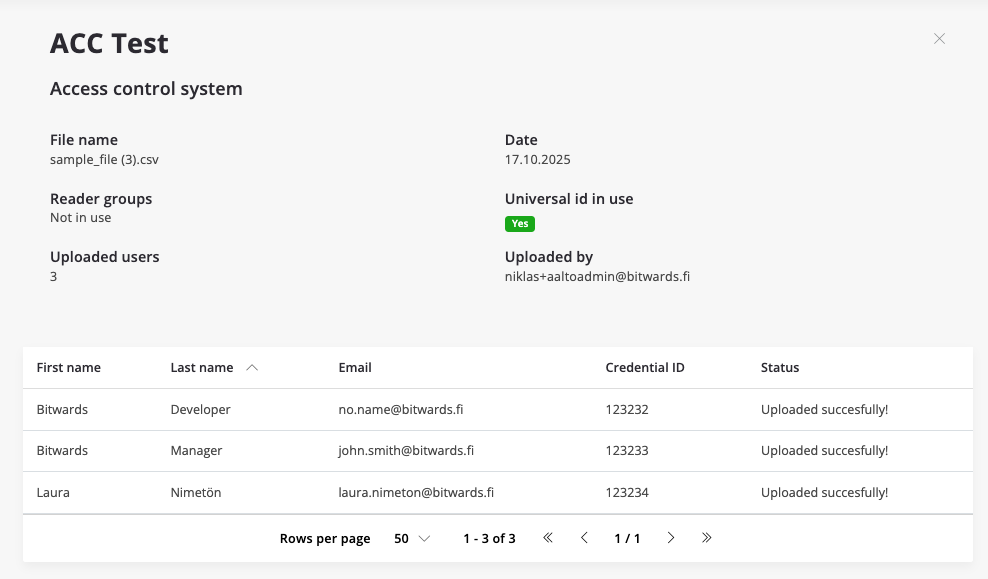
- Reports shows only the rows that were sent and were processed.
- Notice that in some case a single row can still fail. For example if the mobile id value is duplicate.
Tips for CSV Import
- When CSV file is created make should that the character set is stored in the UTF-8 format
- The header row needs to be first row in the file containing the names of the columns: firstName, lastName, email, mobileId, surfaceId
- Service has a sample example file that can be also used to continue editing
- If you export the file from Microsoft Excel (or other) please use comma as delimiter.